
Selling a Digital Product
You can sell a product straight from your page by pointing a clickable block at a checkout. There are two ways to do it: an in-page Lemon Squeezy overlay, or a plain Link to any checkout page.
LinkStudio does not host the product or handle payment. You create the product, set the price, and manage the checkout in your own platform (Lemon Squeezy or another). Here you just point a clickable block at its checkout URL.
The click event works on a Button, an Icon Button, or a Container. Put it on a Container to make an entire product card (image plus text) clickable. See Container.
Option 1: Lemon Squeezy overlay (recommended)
This keeps the visitor on your page. Clicking the button opens the Lemon Squeezy checkout as an overlay on top of your page.
Copy your checkout URL
In your Lemon Squeezy account, get the product's checkout URL.
Add a trigger and enable its click event
Select a Button, Icon Button, or Container, open Click Event in the Fields panel, and turn on Enable Click Event.
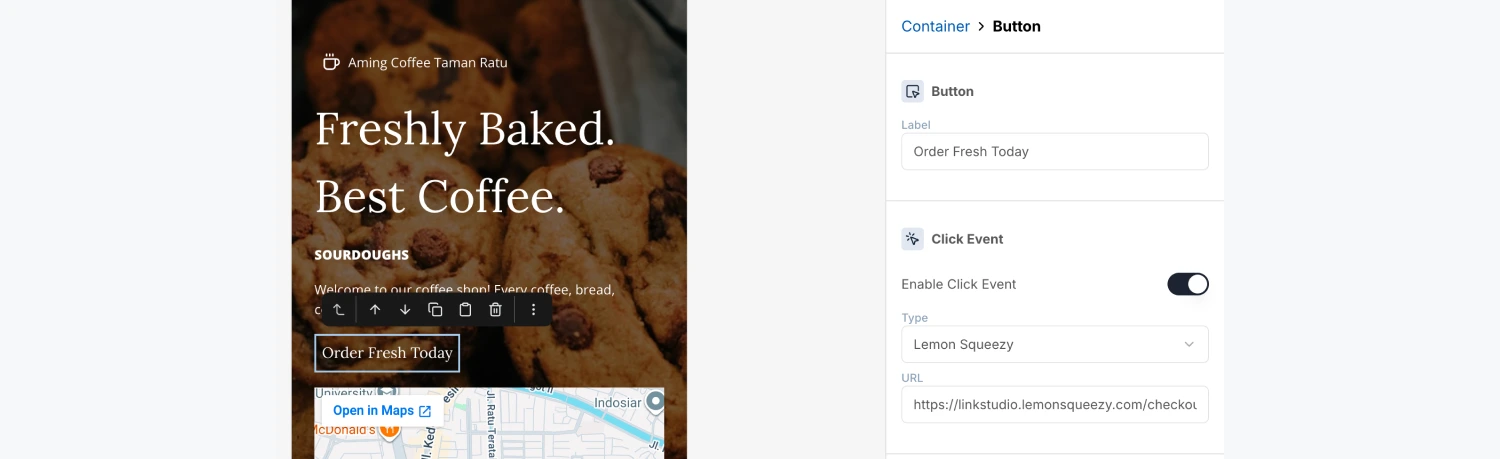
Choose Lemon Squeezy and paste the URL
Set Type to Lemon Squeezy and paste your link into the Checkout URL field.
On your live page, tapping the button now opens the checkout overlay right there, with no interstitial.
Option 2: Link to any checkout
If you sell somewhere other than Lemon Squeezy, use a plain link instead. It works with any checkout URL.
Enable the click event
Select the block (Button, Icon Button, or Container), open Click Event, and turn it on.
Choose Link and paste the URL
Set Type to Link and paste your checkout URL into the URL field.
When a visitor taps this button, they see a short "You're about to leave" confirmation, then the checkout opens in a new tab.
Which should I use?
The Lemon Squeezy overlay only loads on your published page, not in the editor. Publish, then click your button to confirm the checkout appears.