
Layers
Layers shows every block on your page as a tree. It is the fastest way to find, select, and reorder blocks, especially on a busy page or deep inside nested Containers.
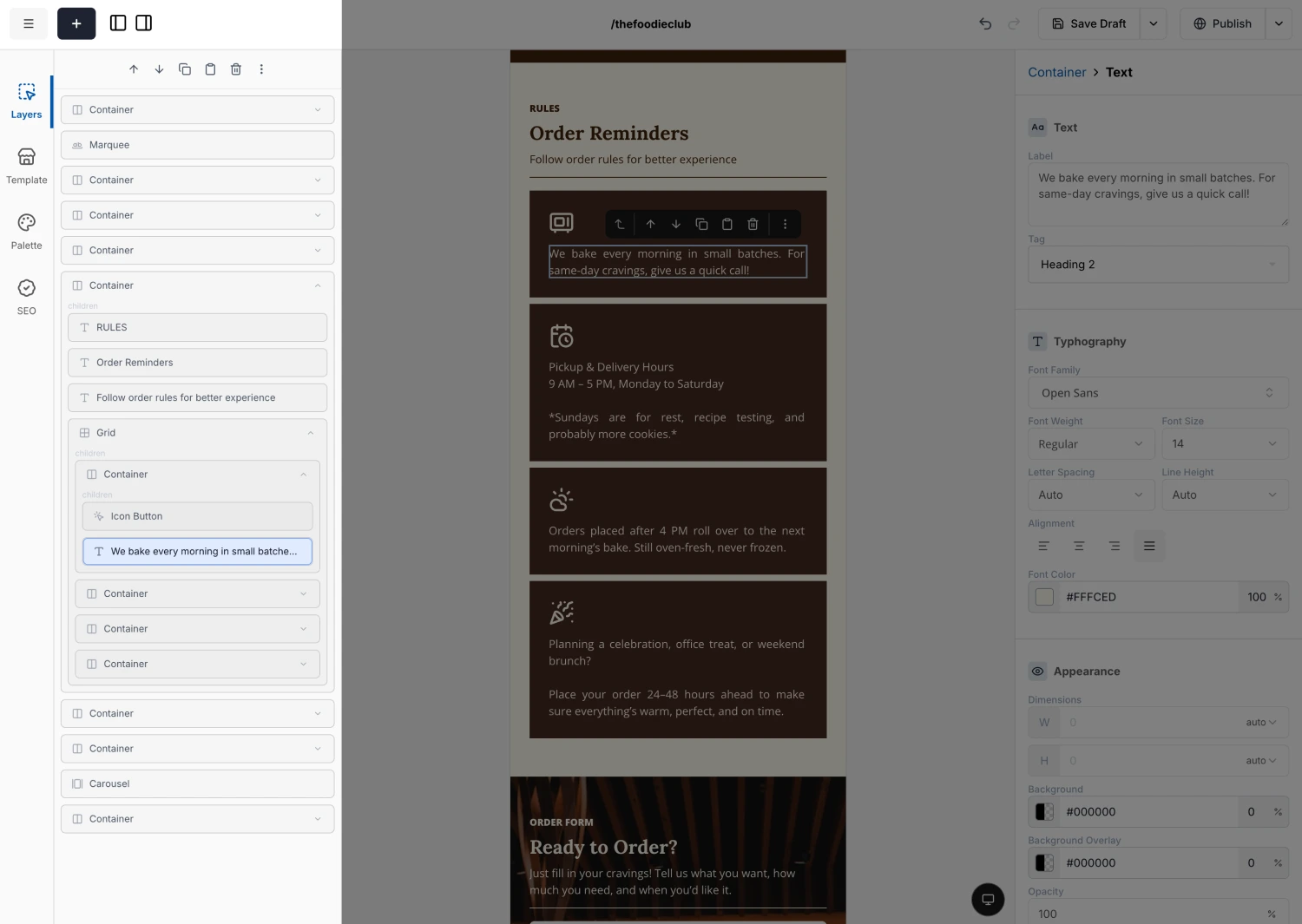
Finding and selecting blocks
Each row shows a block's icon and name. Click a row to select that block and scroll the canvas to it. Layout blocks (Container and Grid) have a chevron you can click to expand or collapse the blocks nested inside them.
The action bar in Layers
At the top of the Layers panel is the same action bar you get when you select a block on the canvas. It works on whichever block is currently selected, so you can act on a block without hunting for it on the page. When nothing is selected it shows "No Item Selected".
It has the usual buttons (move up/down, copy, paste after, remove) and a three-dots menu with Wrap with Container, Move Outside, Duplicate, Copy, Cut, Paste Next To This, and (for layouts) Paste Inside. For what each one does, see Moving Components Around.
Reordering is easy here: select a block in the tree and use the move buttons, or open the three-dots menu to nest it, pull it out of a group, or duplicate it.