
Plans & Billing
Link Studio is free to start. You can build and publish pages on the free plan, and upgrade when you want premium blocks, a custom domain, higher limits, and more.
Each page is upgraded on its own. If you run several pages, you subscribe the ones that need premium features, and leave the rest on the free plan. When you upgrade, you pick which page the plan applies to.
The plans
For the current plan prices, see the pricing page.
What upgrading unlocks
Upgrading a page to Professional turns on the features that are locked on the free plan:
When you click a feature that needs Professional, Link Studio shows an upgrade prompt with an Upgrade to Pro button that takes you straight to checkout for that page. You do not have to hunt for where to upgrade.
Upgrade a page
You can start an upgrade from the page's settings, or from any upgrade prompt you see while editing.
Open the page's Subscription settings
Open the page, go to SettingsSubscription. This section shows the current plan, when it expires, and an upgrade button.
Start the upgrade
Press Upgrade Subscription (or Extend Subscription if the page is already on a paid plan). This opens the checkout with the page selected.
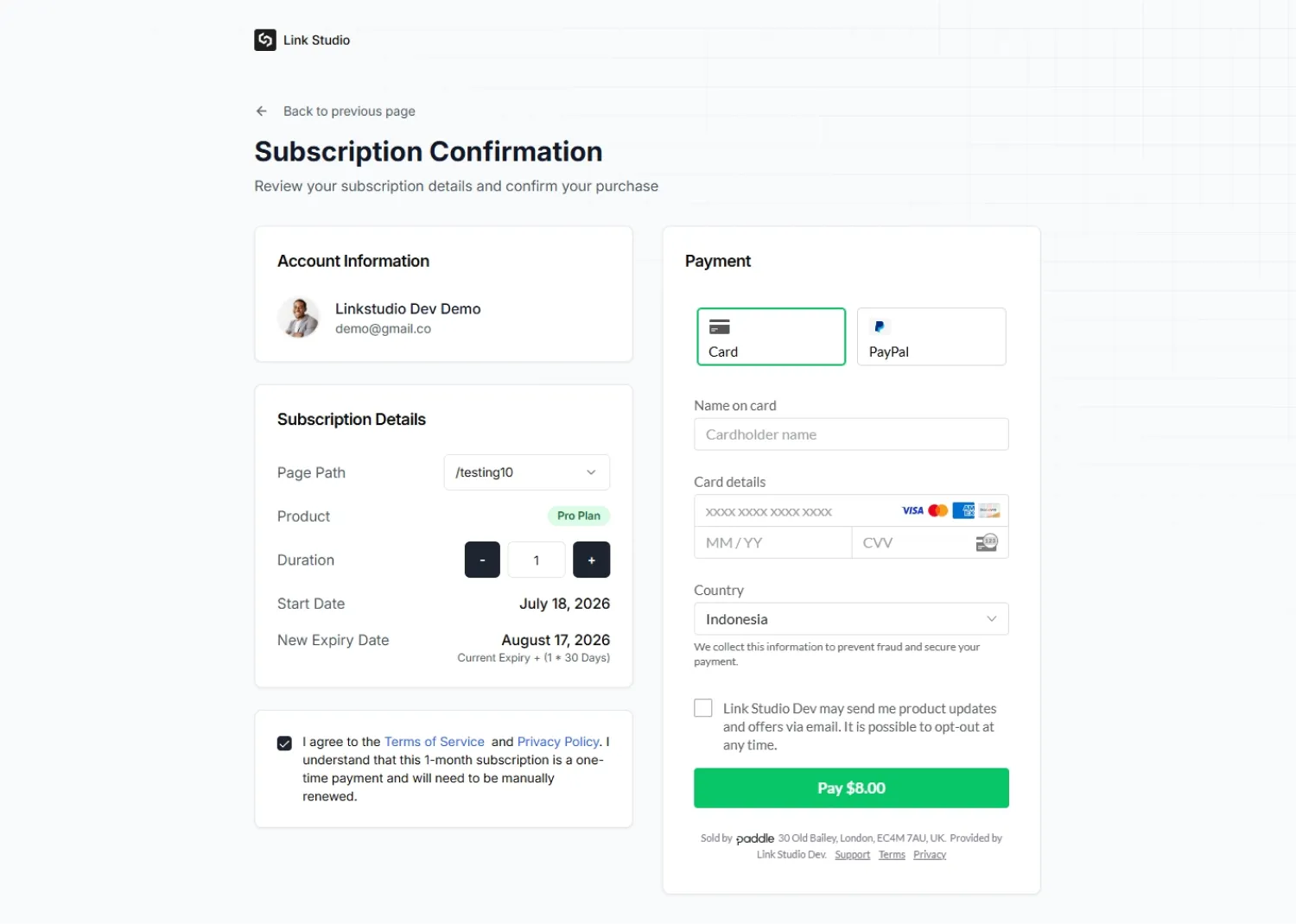
Choose how many months
Set the duration with the stepper. You pay for a fixed number of months, with a minimum of one. There is no separate monthly or yearly toggle, the length you choose is the length you get.
Accept the terms and pay
Tick the box to accept the Terms of Service and Privacy Policy, then complete payment in the secure checkout. When payment succeeds you are returned to the dashboard and the page is upgraded.
A Link Studio plan is a one-time payment for the months you choose, not an auto-renewing subscription. Nothing is charged again on its own. Before the expiry date, come back to SettingsSubscription and press Extend Subscription to keep the premium features on. If a page lapses, it drops back to the free plan and its premium blocks stop showing on the live page.
Manage and review billing
Everything about a page's plan lives in SettingsSubscription:
Because plans are one-time and do not recur, there is no auto-billing to cancel. If you no longer want a paid plan, simply let it expire and the page returns to the free plan.
Free plan limits to know
The free plan is generous, but a few caps are worth planning around:
If a live page suddenly stops showing to visitors, check the view limit first. It is the most common reason a free page goes quiet near the end of a busy month.